Main Reporting Screen
Widgets on the Home Screen
Section titled “Widgets on the Home Screen”The app’s home screen is the central place for working with the schedule, events, and quick actions. Different interface versions, tab bar sections, widgets, and display settings are available here. This article provides instructions on switching between home screen versions, setting up widgets, changing the background, working with quick actions, and managing events. All actions are accompanied by screenshots for clarity.
Tab Bar Sections
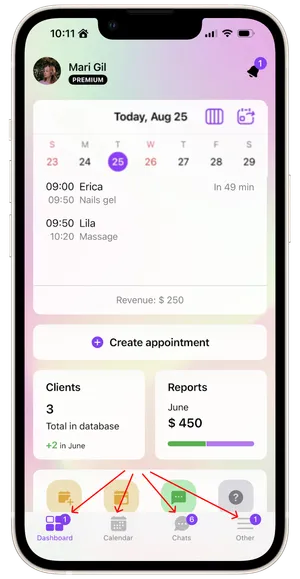
Section titled “Tab Bar Sections”The bottom menu provides access to four main app sections:
- Dashboard;
- Calendar;
- Chats;
- Other.
Appointment Widget
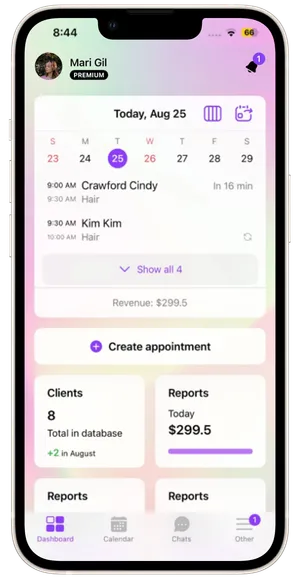
Section titled “Appointment Widget”The appointment widget has two modes: day view and week view. Week view is convenient for planning the overall workload, while day view is useful for monitoring the progress of events and requests.
Day View
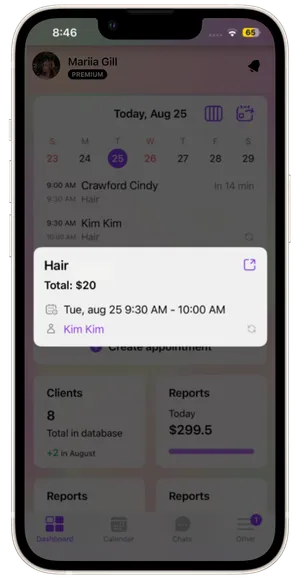
Section titled “Day View”- The screen displays a list of events scheduled for the selected day.
- In the list, you can track the current event, the next event time, and situations that require action on a new request or prepayment.
To switch to the full day schedule, tap the calendar icon with an arrow.
To view an event card, tap the event. To open the full event card, tap the arrow icon in the card that appears.
Week View
Section titled “Week View”To switch to week view, tap the icon next to the calendar.
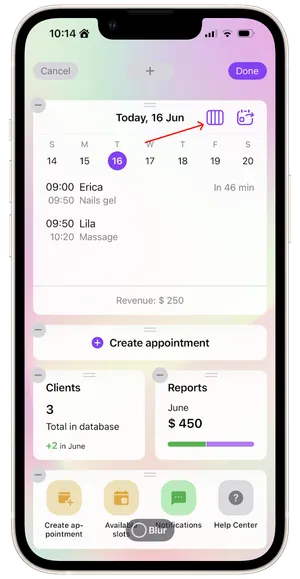
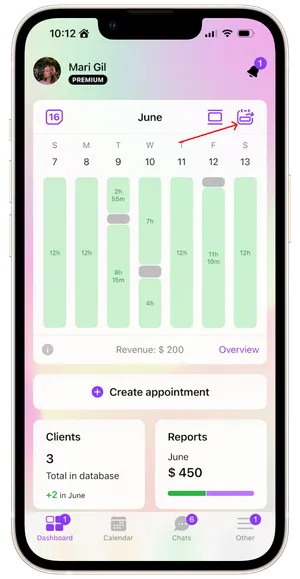
- The screen displays a summary of busy and free slots.
- To view brief information about busy or free time, tap any slot.
You can also go to the week calendar. To do this, tap the far-right icon.
Editing Mode
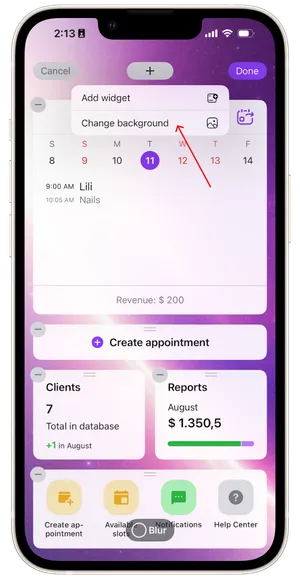
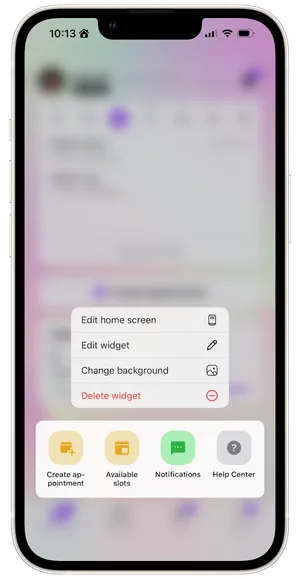
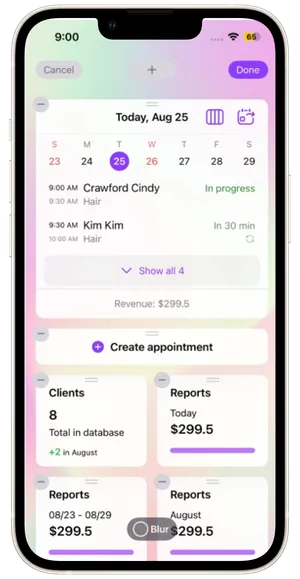
Section titled “Editing Mode”In home screen editing mode, the following actions are available: adding, editing, moving, and deleting widgets, as well as changing the background.
You can enter editing mode in two ways:
-
Press and hold any empty area on the screen.
-
Press and hold a widget and, in the menu that appears, select Edit home screen or the desired option — editing the widget, deleting it, or changing the background.
Adding Widgets
Section titled “Adding Widgets”Added widgets can be moved and replaced directly in editing mode.
-
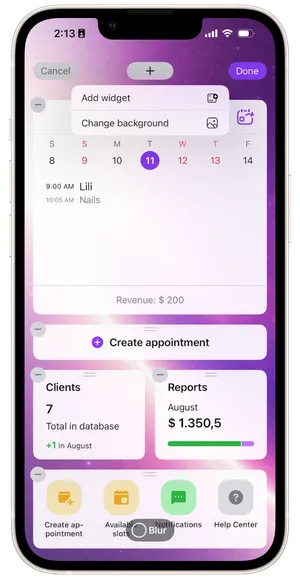
Go to home screen editing mode → see the Editing widget section.
-
Tap + at the top of the screen.
-
Select Add widget.
-
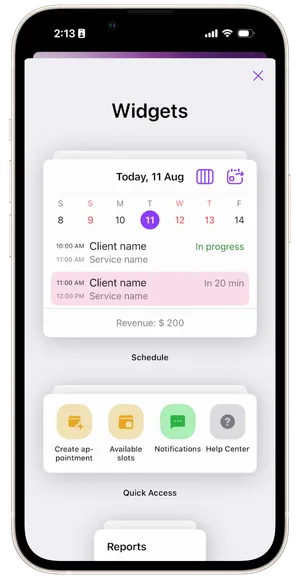
In the gallery that opens, select the required widget type.
-
Select a setting and tap Add widget. The widget will appear on the home screen.
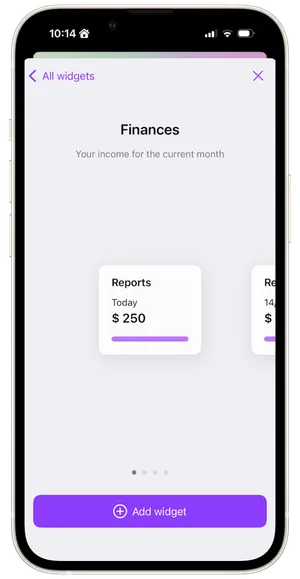
- To apply the changes, tap Done at the top of the screen.
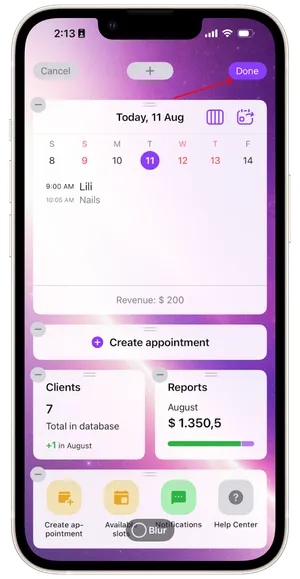
Сhanging background
Section titled “Сhanging background”To change the Home screen background:
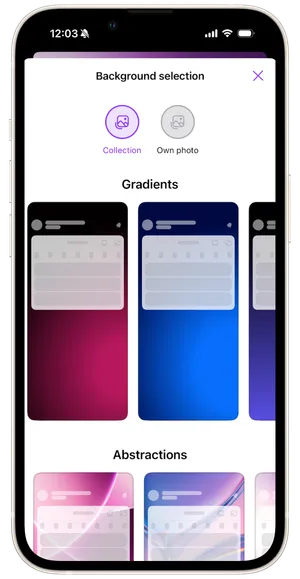
- In edit mode, tap + → Change background.
- You can choose a background from the collection: a gradient, an abstract design, or an image. You can also upload your own photo.
- Tap Apply.